
Is it worth customizing this? For me, absolutely. From my personal experience, it’s much better to customize it. The default option doesn’t inspire much trust and, honestly, it’s a bit ugly. By default, it looks like this:
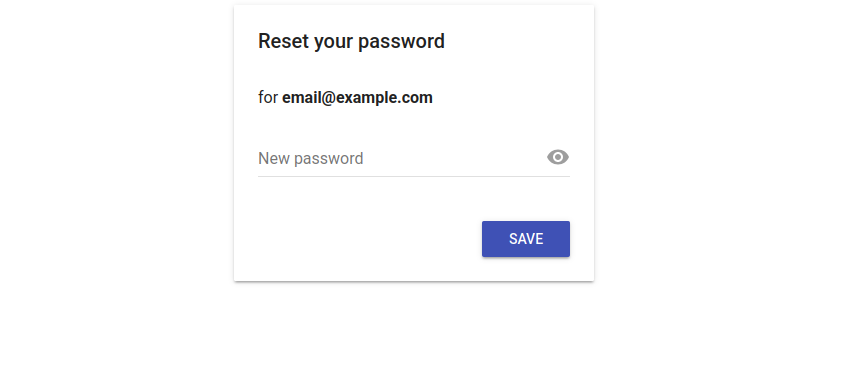
How does it work?
When a password reset is requested, Firebase generates a unique code called oobCode, which is sent through a link by Firebase itself. What I’ll do is, instead of using Google’s default page, configure a React app as the official handler for these codes.
Configuration in the Firebase Console
Before going to the code, you need to grant permission to the application. Follow these steps:
- Go to
Authentication > Settingsand add your domain (e.g. my-app.com or localhost). - In
Authentication > Templates, select the pencil icon in “Password Reset”. Click on “Edit URL” and change the address to yours: https://my-app.com/auth/action.
Implementation with React
We need two key pieces: an action handler and the new password form.
AuthHandler
This component acts like a “traffic light”. It receives the request from Firebase and decides what to do.
import { useEffect } from 'react';
import { useSearchParams, useNavigate } from 'react-router-dom';

const AuthHandler = () => {
  const [searchParams] = useSearchParams();
  const navigate = useNavigate();

  useEffect(() => {
    const mode = searchParams.get('mode'); // 'resetPassword'
    const oobCode = searchParams.get('oobCode'); // The secret token

    if (mode === 'resetPassword') {
      navigate(`/reset-password?oobCode=${oobCode}`);
    } else {
      navigate('/login');
    }
  }, [searchParams, navigate]);

  return <p>Validating security request...</p>;
};
ResetPassword
Firebase’s confirmPasswordReset method is used to complete the process and apply the password change.
import { confirmPasswordReset, getAuth } from "firebase/auth";

const handleReset = async (newPassword) => {
  try {
    await confirmPasswordReset(auth, oobCode, newPassword);
    alert("Success! You can now sign in.");
  } catch (error) {
    alert("The link has expired or is invalid.");
  }
};
Doing this improves the user experience (UX) and also reinforces security, since users will never feel like they are leaving your application. It also gives a better image and a more professional feel compared to using the default Firebase page.