
What is an SSH key and what is it used for?
SSH (Secure Shell) is a protocol that allows two computers to connect securely over an insecure network. In the context of GitHub, it works like a “digital key.”
Imagine you have a special lock on your GitHub account. Instead of using a password that can be stolen, you use a key pair:
- Public Key: You give this to GitHub. It’s public, and it doesn’t matter if someone else sees it.
- Private Key: This stays stored exclusively on your computer. No one else should have it.
It is used for:
- Security: It’s much harder to compromise than a traditional password.
- Convenience: Once configured, GitHub will recognize your computer automatically.
Add your SSH key to GitHub
1. Generate a new SSH key
First, create the key pair on your computer. Open your terminal (or Git Bash if you’re on Windows) and run the following command.
We recommend the
ed25519algorithm because it’s more secure and faster than the older RSA.
ssh-keygen -t ed25519 -C "[email protected]"The system will ask where to save the key. Just press Enter to accept the default location. Then it will ask for a passphrase; you can leave it empty for convenience or set one for extra security.
2. Enable the SSH agent
Now we need your system to remember this key so it can use it.
- Start the SSH agent in the background:
eval "$(ssh-agent -s)"You should see a message like
Agent pid 12345.
- Add your private key to the agent:
ssh-add ~/.ssh/id_ed255193. Copy the public key
We need to copy the contents of your public key (the file that ends with .pub) to paste it into GitHub.
- Mac:
pbcopy < ~/.ssh/id_ed25519.pub - In Windows (PowerShell):
cat ~/.ssh/id_ed25519.pub | clip - In Linux:
xclip -selection clipboard < ~/.ssh/id_ed25519.pub(or simply usecat ~/.ssh/id_ed25519.puband copy it manually from the terminal).
4. Add the key to GitHub
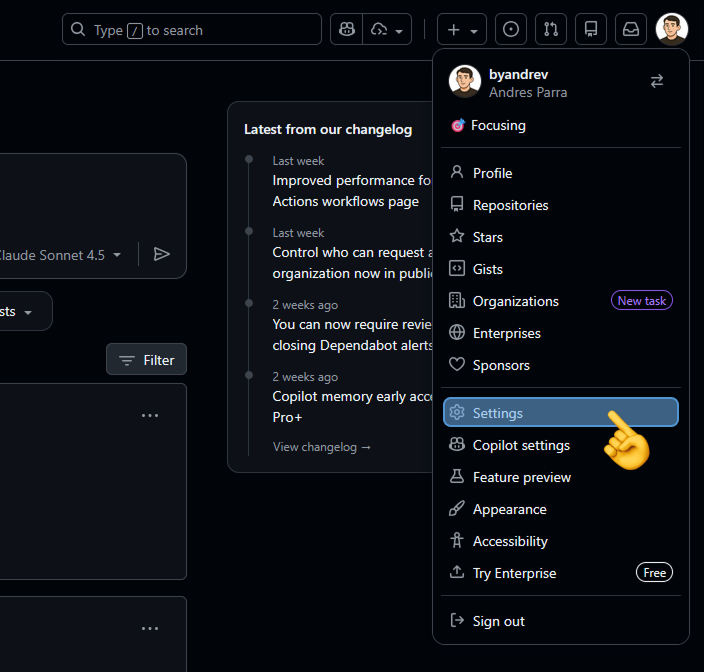
- Go to your GitHub account and click your profile picture (top-right corner) > Settings.
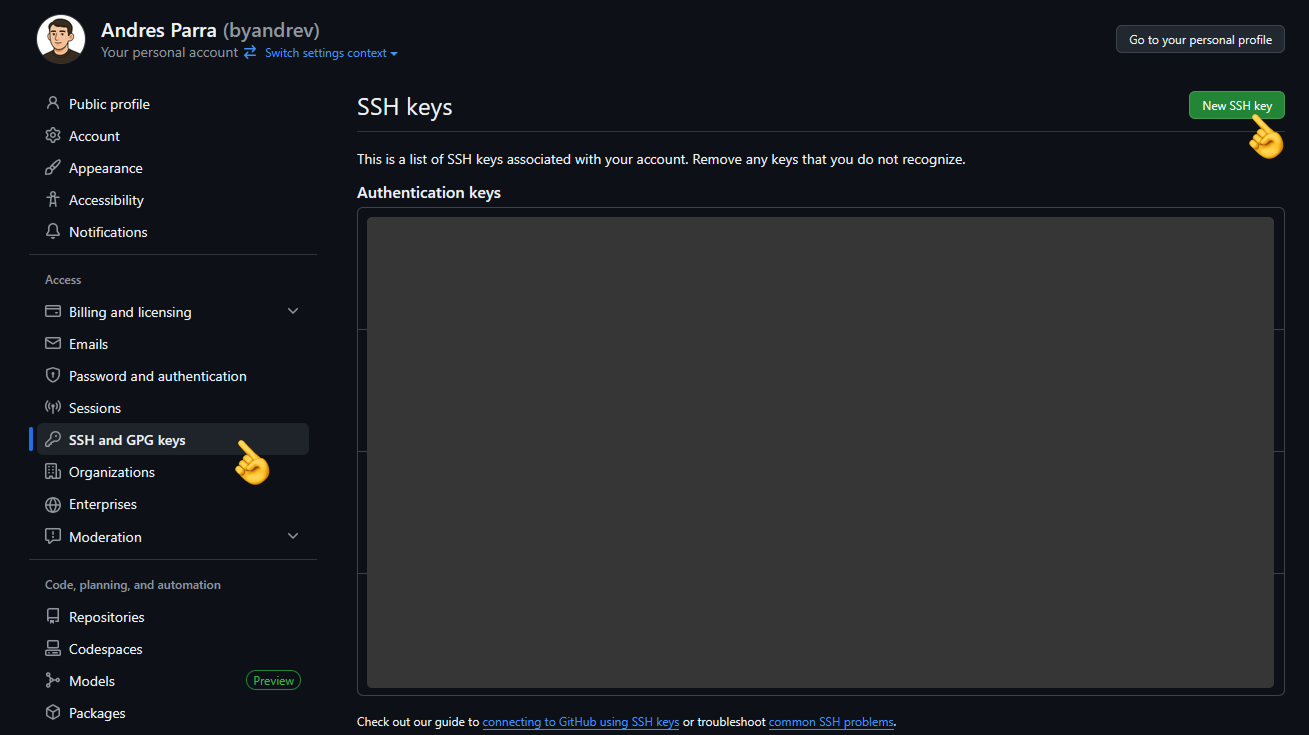
- In the left sidebar, find and click SSH and GPG keys.
- Click the green button that says New SSH key.
- Title: Give it a name to identify your PC (e.g., “My Personal Laptop”).
- Key: Paste the key you copied in the previous step.
- Click Add SSH key.
You can now clone, push, and pull changes from your repositories without needing passwords.