Creating a PostgreSQL database on AWS RDS
Create the instance
Console
Go to the Aurora and RDS service and click Create database.
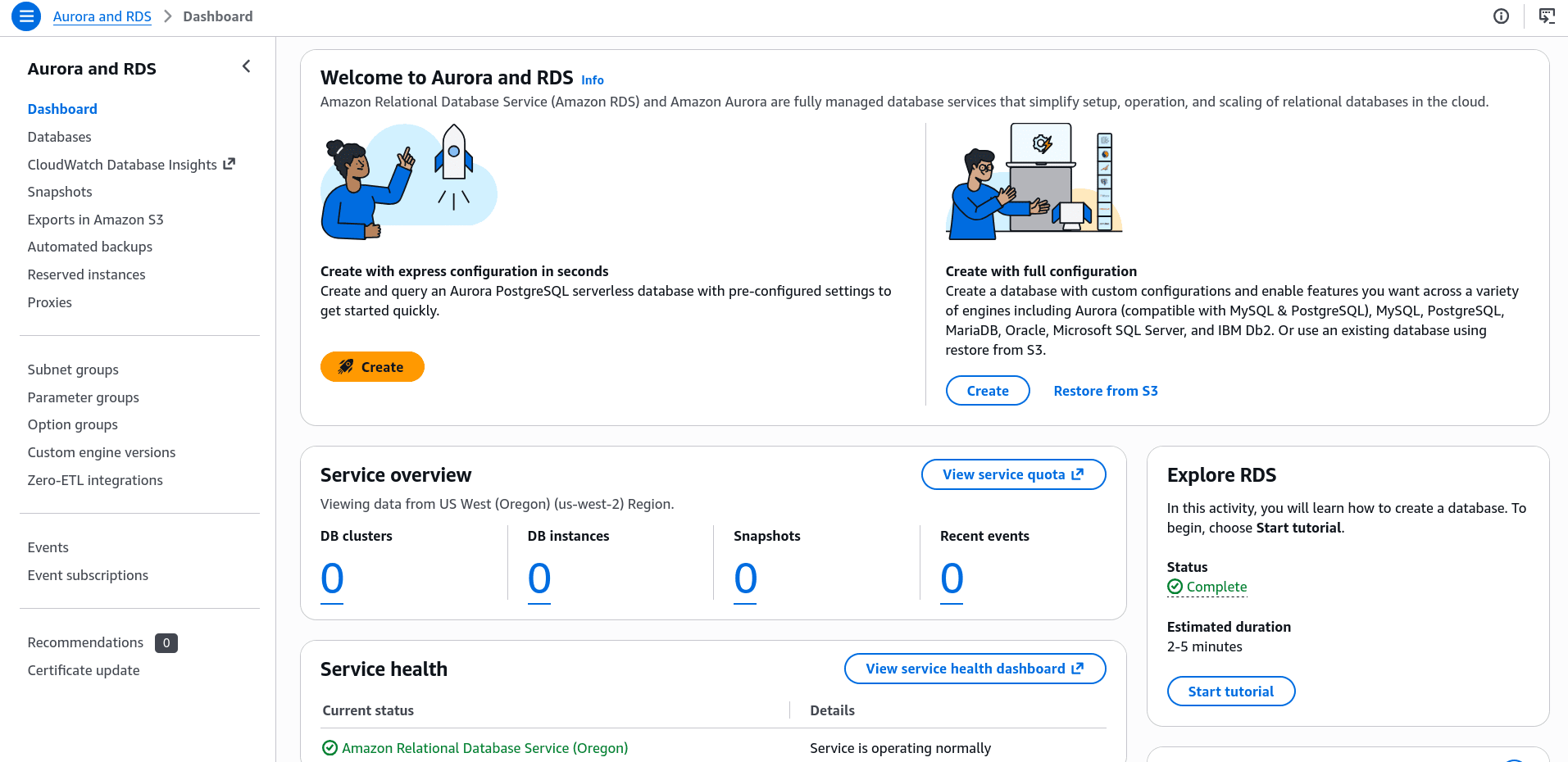
Two things to decide first:
- Creation method. I use Create with full configuration. The quick option hides settings you will need later anyway.
- Engine. I picked PostgreSQL. The rest of this post assumes Postgres and port 5432. For MySQL the flow is the same, the port is 3306.
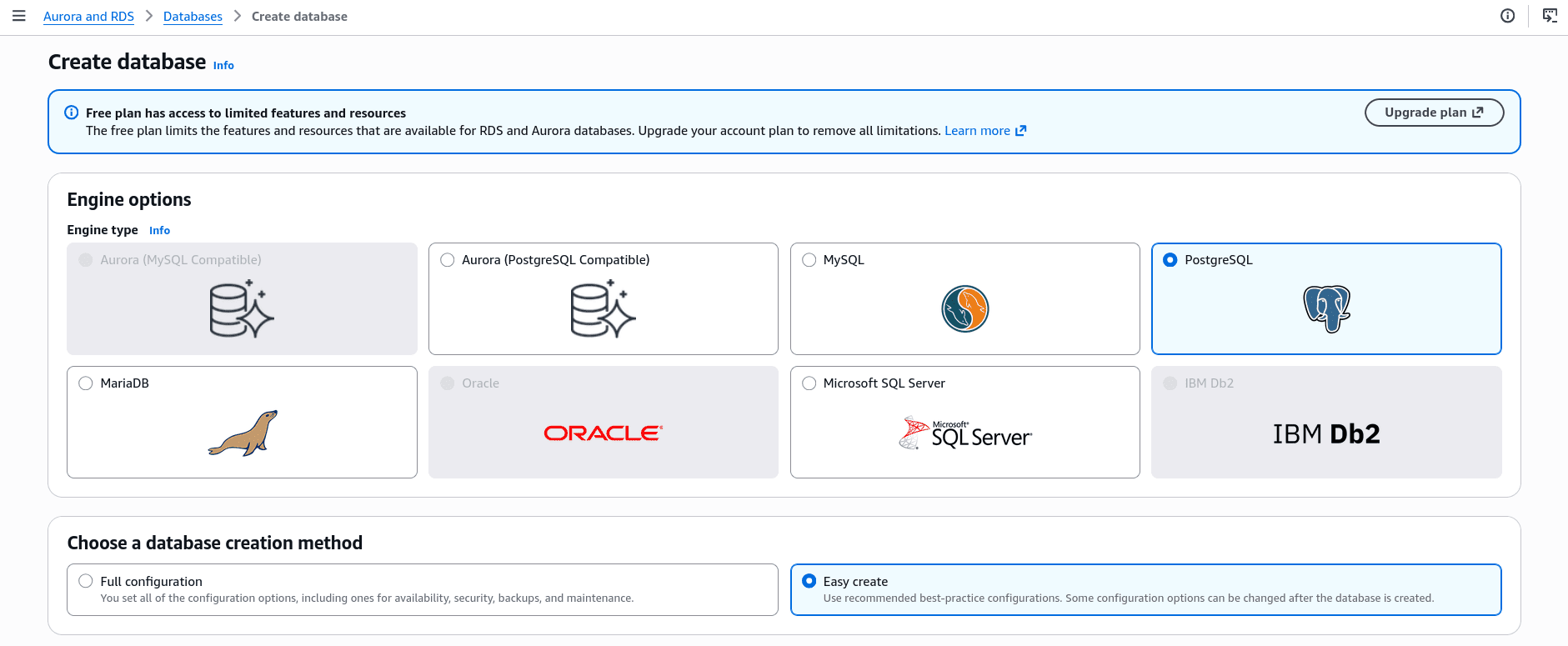
Then AWS asks for Express configuration or Full configuration. Express picks the instance size and networking for you. Full lets you choose. For learning, Express is fine. For anything you will keep, use Full so you know what you are paying for.
Pick your DB instance size. This is the part that costs money, so check the free tier options before you click.
RDS bills per hour for as long as the instance exists, whether you query it or not. If you are following this post to learn, decide now that you will delete it when you finish.
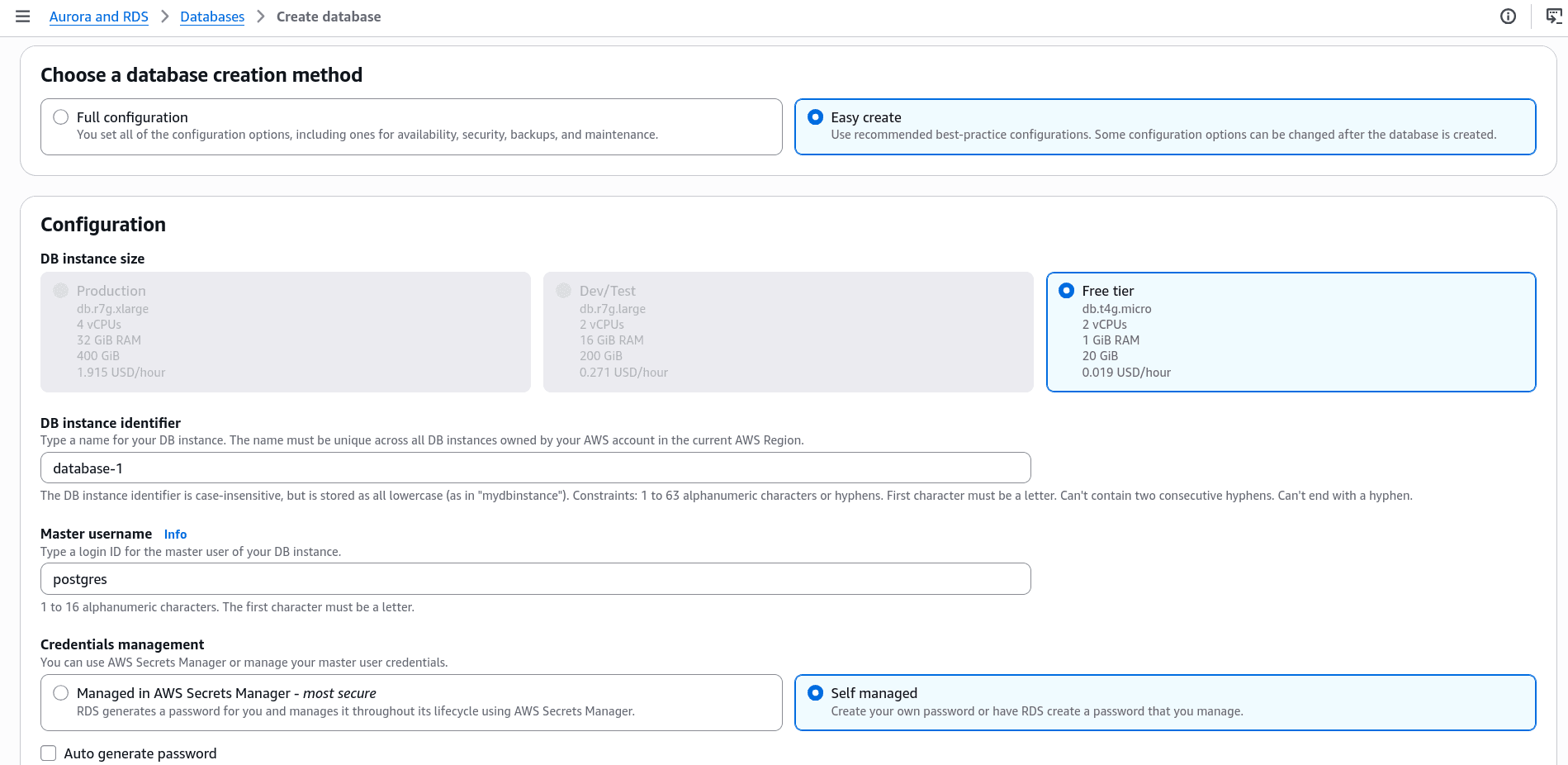
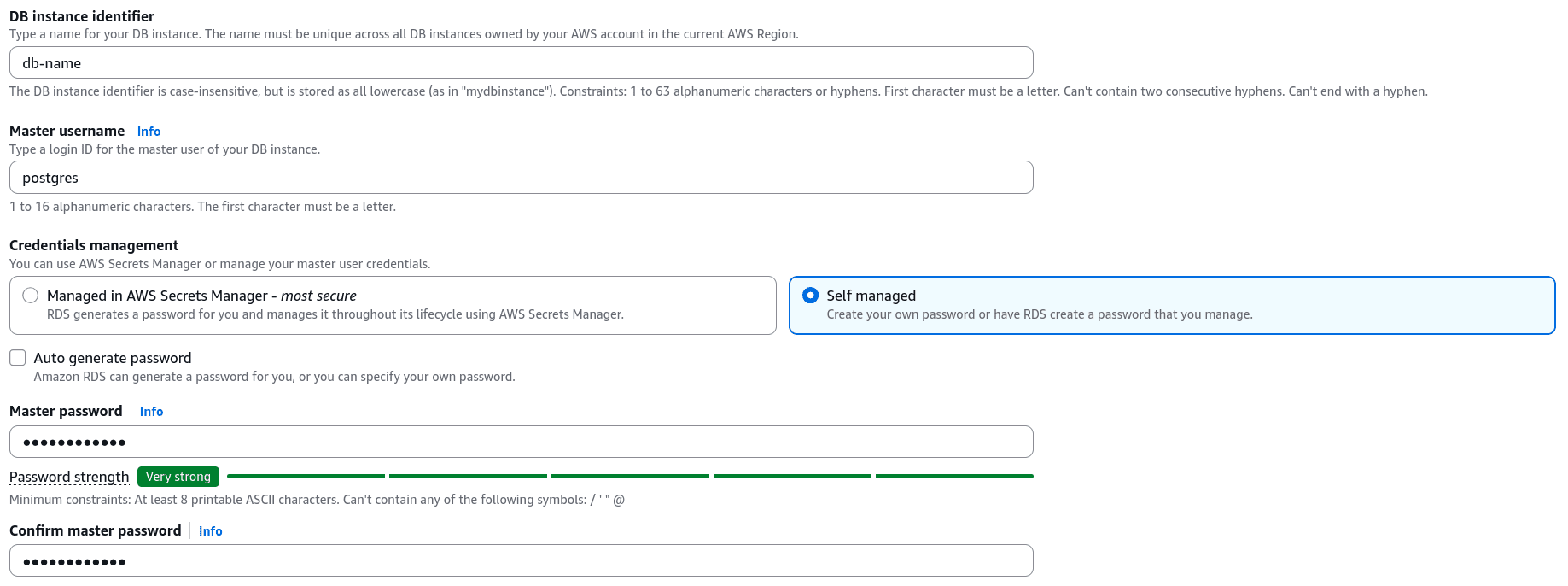
Set the master username and password. Write them down now. Resetting them later is possible but annoying.
CLI
The same thing in one command:
aws rds create-db-instance \
  --db-instance-identifier my-postgres-db \
  --engine postgres \
  --db-instance-class db.t4g.micro \
  --allocated-storage 20 \
  --master-username postgres \
  --master-user-password 'CHANGE_ME' \
  --publicly-accessible
The password goes straight into your shell history here. Read it from an environment variable or a secrets manager if you care, which you should.
Instance classes are not available in every region and for every engine version, so db.t4g.micro may fail for you. Check the current free tier eligible class before running this.
Creation takes a few minutes. Block until it is ready:
aws rds wait db-instance-available --db-instance-identifier my-postgres-dbMake it reachable from outside the VPC
By default the database only accepts connections from inside its VPC. Your laptop is not inside the VPC.
Console
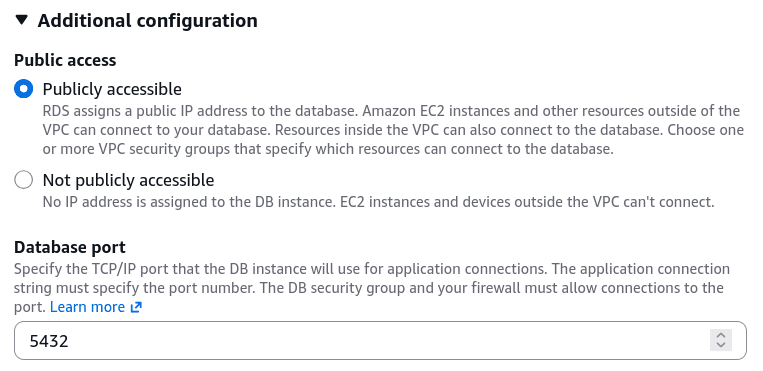
Modify the instance, go to Connectivity, and set Public access to Publicly accessible. RDS then assigns a public IP address to the database. Resources outside the VPC can connect, and resources inside the VPC still can.
CLI
aws rds modify-db-instance \
  --db-instance-identifier my-postgres-db \
  --publicly-accessible \
  --apply-immediately
Without --apply-immediately the change waits for the next maintenance window.
Either way, this alone is not enough. Public access opens the door, the security group decides who walks through.
Open the port in the security group
If the connection hangs after enabling public access, the port is closed.
Console
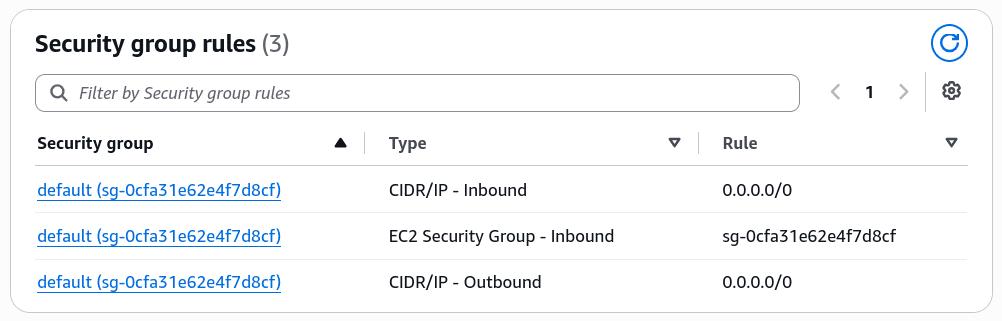
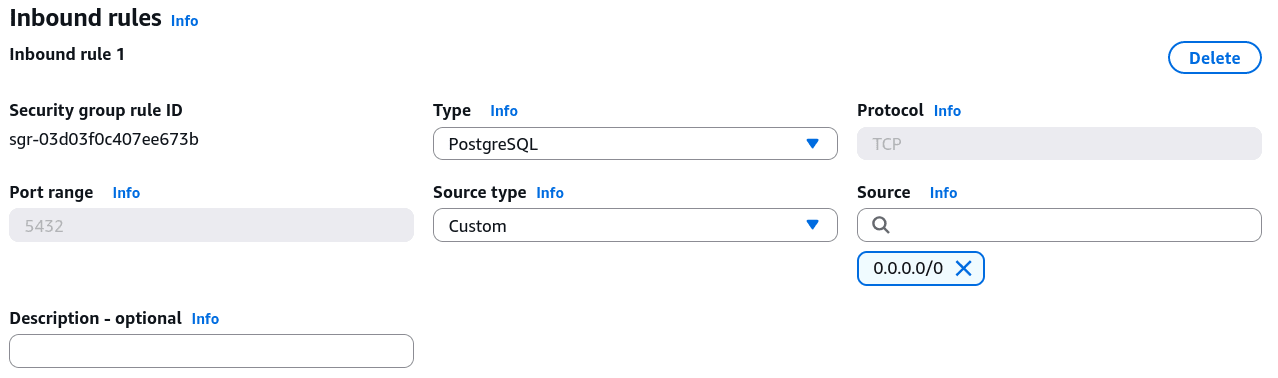
Go to Security group rules on the database page and click one of the inbound rules. That takes you to Security Groups. Select the group attached to your database, then Edit inbound rules and add:
- Type: PostgreSQL
- Port: 5432
- Source: your IP
CLI
First find the security group attached to the database:
aws rds describe-db-instances \
  --db-instance-identifier my-postgres-db \
  --query 'DBInstances[0].VpcSecurityGroups[0].VpcSecurityGroupId' \
  --output text
Then add the rule with your own IP:
aws ec2 authorize-security-group-ingress \
  --group-id sg-0123456789abcdef0 \
  --protocol tcp \
  --port 5432 \
  --cidr 203.0.113.42/32
Use your own IP with /32, not 0.0.0.0/0. 0.0.0.0/0 means the whole internet can reach your database, and bots scan for open database ports constantly. Your password is then the only thing standing there.
If your home IP changes, you will have to update this rule again. That annoyance is the price of not being scanned.
Connect from your machine
Console
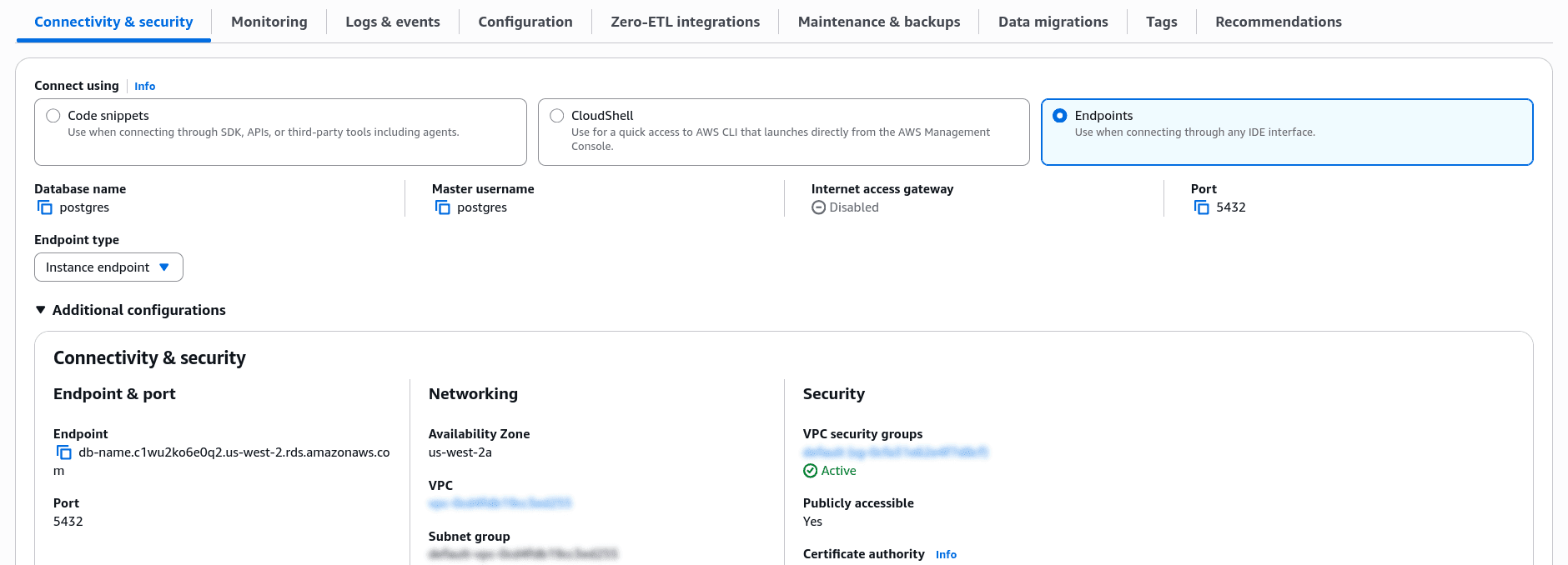
On the database page, open Connect using and choose Endpoints. Copy the endpoint and the port.
CLI
aws rds describe-db-instances \
  --db-instance-identifier my-postgres-db \
  --query 'DBInstances[0].Endpoint.[Address,Port]' \
  --output text
Then connect
psql -h <your-endpoint>.rds.amazonaws.com -p 5432 -U postgres -d postgres-U is the master username you set, -d is the database name. If you did not create one, Postgres drops you into the default postgres database.

If it hangs with no error, it is the security group, not the credentials. Wrong credentials fail fast, blocked ports time out.
Delete it when you are done
Stopping the instance is not enough. A stopped RDS instance still charges for storage and backups.
If the database was only for learning, delete it:
aws rds delete-db-instance \
  --db-instance-identifier my-postgres-db \
  --skip-final-snapshot \
  --delete-automated-backups
--skip-final-snapshot means your data is gone with no copy. That is what you want for a test database and the last thing you want for anything else.
In the console: select the instance, Actions, Delete, then uncheck the final snapshot option and type the confirmation phrase.
Two more things that keep billing after the instance is gone: manual snapshots you took, and any final snapshot you decided to keep. Check the Snapshots section too.
The part I would not ship
Public access plus a password is not a production setup. For something real, the database stays private and you reach it from inside the VPC: an EC2 instance, a bastion host, or a VPN. I used public access because I needed to query the database from my own machine while building, and I plan to turn it off.
Frequently asked questions
Can I connect to RDS without making it public?
Yes, and it is the better option. Put an EC2 instance in the same VPC and open an SSH tunnel through it, or use AWS Systems Manager Session Manager so you do not expose an SSH port either. Your laptop then talks to the database through that tunnel and the database stays private.
Do I need to reboot the instance after changing public access?
No. The change applies without a reboot, but it is not instant. Give it a minute before deciding it did not work.
Should I use RDS or Aurora?
RDS runs standard PostgreSQL or MySQL. Aurora is AWS's own storage engine with the same wire protocol, better at scaling reads, and more expensive at small sizes. For a side project or a first database, plain RDS is the answer.
Comments